









It’s a lot simpler than you might think.
Click on the menu at the very top of the page ( in the orange bar ) and click on “Login / Account” to sign in.
Use the same email address you used to purchase your subscription.
If you go to “Account” you can change your billing address, change your password, and take a look at your orders and subscriptions etc.
Your profile will look something like this:
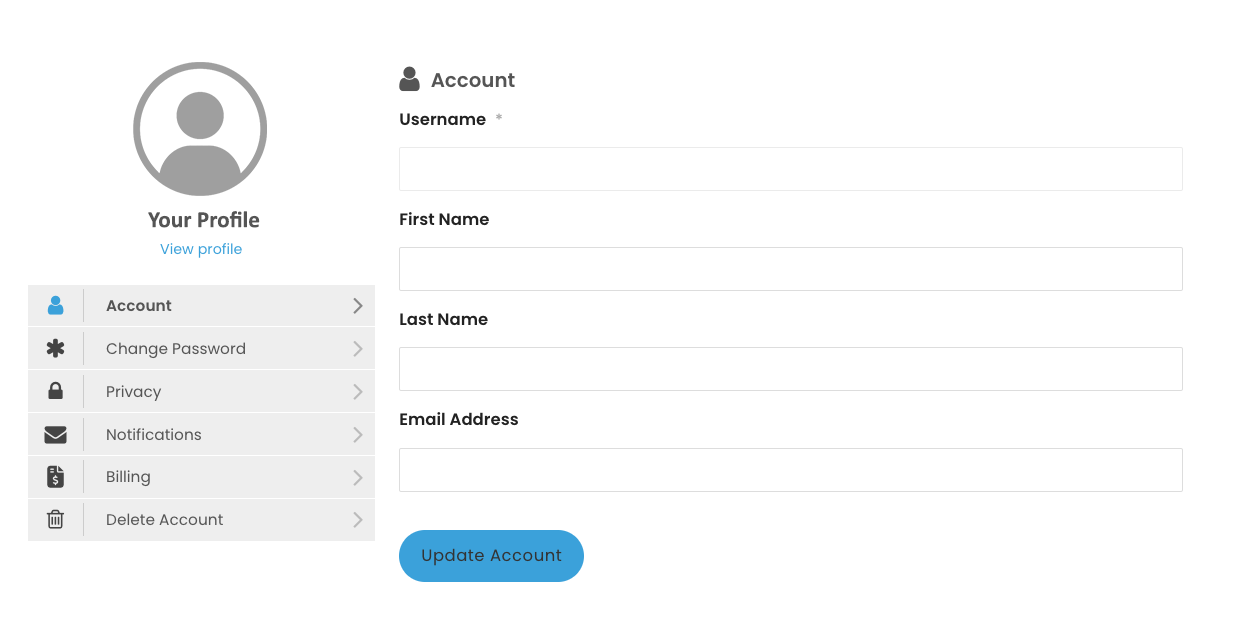
If you forget your password, simply click on “Password Reset”
Set up your profile
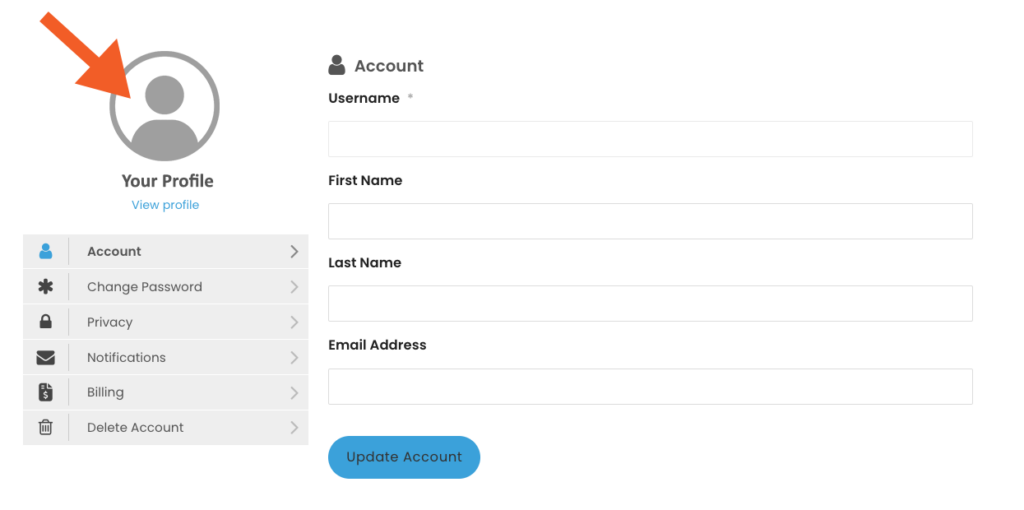
By clicking on the round image, or the text “View Profile” under it, you can see how your profile will look to other visitors.
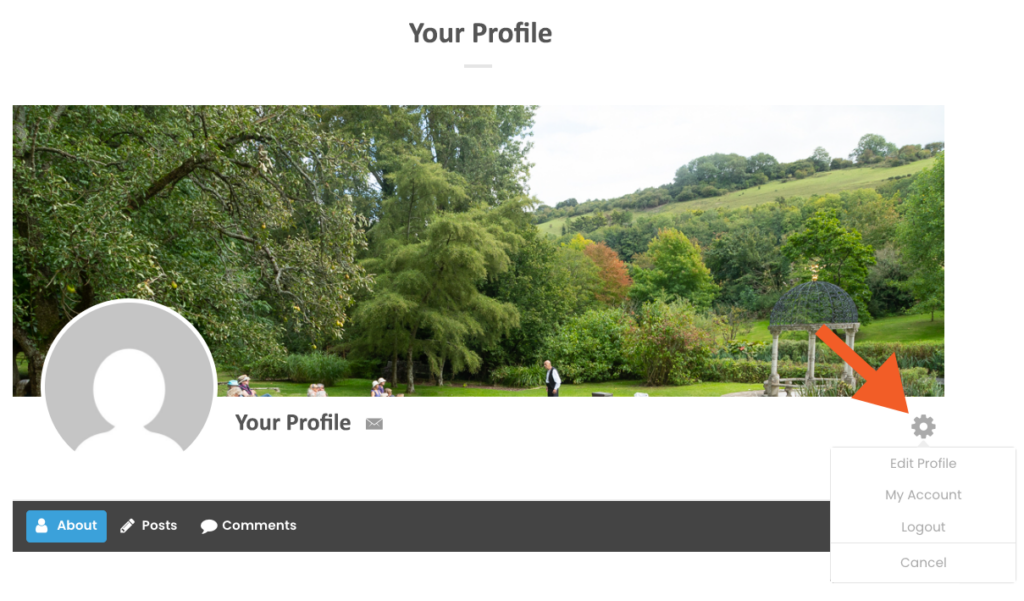
Click on the cog symbol and “Edit Profile”
From here you can edit everything from your profile picture and your cover photo, to information about yourself, your social media links and your website etc.
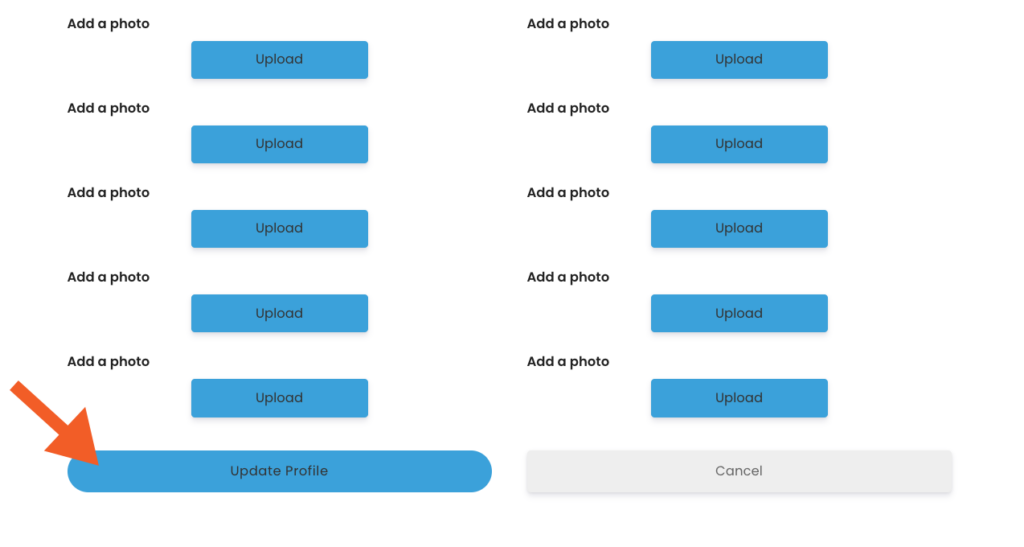
Be sure to save your changes by clicking on “Update Profile”
And that’s it, you’re all set.
If you have any issues, then don’t hesitate to get in touch with us.